Wednesday, September 9, 2009

TAG OFFER ♥ Dark Princess ♥


Click the tag to preview at full size.

If you would like this tag, please email me HERE. Please put "Dark Pincess" in the subject line when requesting. Thank you!

ScrapKit used *Princess* by Bea of Bea Creations. You can purchase it HERE.

I am using the artwork of Jamie Kidd, you can find his licensed art at CILM.

Friday, September 4, 2009

♥ Devilish Angel ♥


Click the tag to preview at full size. This tutorial was written by Marta on September 4, 2009. Any resemblance to any other tutorial is coincidental. Do not copy and paste this tutorial elsewhere on the net. Absolutely NO Scripting and/or translating of this tutorial.

For this tutorial you will need:

PSP
Tube of choice
Font of choice (I used Portfolio)
Xenofex2 - Constellation
ScrapKit *Spun Sugar* by Lynne of Baby Cakes Scraps.
You can purchase it HERE.

I am using the artwork of Elias Chatzoudis, you can find his licensed art at MPT.

Let's get started:

Open a new image 550 x 550 and background set to black.

Copy & paste Heart_Frame_Two as a new layer. Copy & paste Pink_Paper_Eight as a new layer and move under the frame layer. Using your Magic Wand, click inside the frame, Selections/Modify/Expand by 7, Selections/Invert and hit Delete on the paper layer. Add drop shadow to frame. Merge these two layers.

Duplicate. Working on original image, Adjust/Blur/Gaussian Blur/Radius set to 8. Effects/Xenofex2/Constellation/Set to Star Size/55, Size Variation/100, Edge Star Density/1, Overall Star Density/12, Overdrive/82, Twinkle Amount/75, Twinkle Rotation/45, Keep original image checked, Random Seed/1.

Image/Canvas Size/Set to 560 x 560. Open a new rastor layer, and floodfill with white.

Add any additional flowers, bows, feather, butterflies, or elements of your choice.

Crop or resize to your liking. Add your text, copyright info, and watermark, and save as a jpg, png, or gif file.

That's it.. all done!

Wednesday, September 2, 2009

♥ Eternal Time ♥


Click the tag to preview at full size. This tutorial was written by Marta on September 2, 2009. Any resemblance to any other tutorial is coincidental. Do not copy and paste this tutorial elsewhere on the net. Absolutely NO Scripting and/or translating of this tutorial.

For this tutorial you will need:

PSP
Tube of choice
Font of choice (I used Burgues Script)
ScrapKit *Zen* by Marie of Sky Scraps Designs.
You can purchase it HERE.

I am using the artwork of Jennifer Janesko, you can find her licensed art at CILM.

Let's get started:

Open a new image 550 x 550 and background set to white. Copy & paste frame4 as a new layer. Copy & paste paper4 as a new layer and move under the frame layer. Using your Magic Wand, click inside the frame, Selections/Invert, and hit Delete on the paper layer. Add drop shadow to frame. Copy & paste element5 as a new layer and move under the frame layer.

Copy & paste flower10 and flower11 as new layers, and place at the bottom right of the frame. Add drop shadows to both.

Add any additional flowers, bows, butterflies, leaves, or elements of your choice.

Crop or resize to your liking. Add your text, copyright info, and watermark, and save as a jpg, png, or gif file.

That's it.. all done!
Sunday, August 30, 2009

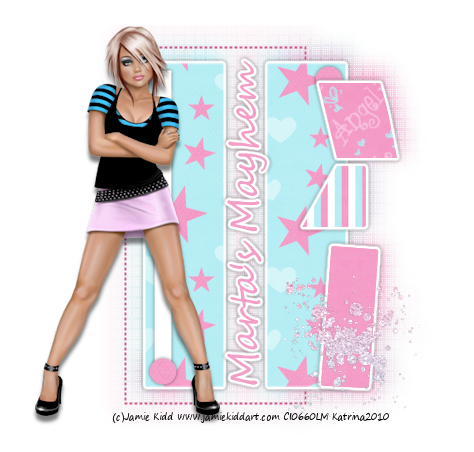
♥ Lil Miss Witchy Poo ♥


Click the tag to preview at full size. This tutorial was written by Marta on August 30, 2009. Any resemblance to any other tutorial is coincidental. Do not copy and paste this tutorial elsewhere on the net. Absolutely NO Scripting and/or translating of this tutorial.

For this tutorial you will need:

PSP
Tube of choice
Font of choice (I used JUICED)
Mask of choice
ScrapKit *Lil Miss Witchy Poo* by Tootypup of Tootypup Scraps.
You can purchase it HERE.

Let's get started:

Open a new image 525x575 and background set to white. Copy & paste Paper6c as a new layer. Open your mask of choice, Layers/New Mask Layer/From Image and find the mask in the drop down list. Delete mask layer, and merge group.

Copy & paste Frame3 as a new layer. Using your Magic Wand, click inside the frame, making sure you select each open piece of the frame. Copy Paper5c. Add new raster layer and paste into selection. Move this layer under the frame. Add drop shadow to frame.
Copy & paste barivy1 as a new layer. Place at bottom of frame. Add drop shadow. Duplicate. Image/Rotate/Left/90 degrees and place at the left of the frame.

Copy & paste your tube of choice, I used littlewitch1 and add drop shadow. Copy & paste bat2 as a new layer and move to the top right of the frame.

Add any additional flowers, bows, butterflies, or elements of your choice.

Crop or resize to your liking. Add your text, copyright info, and watermark, and save as a jpg, png, or gif file.

That's it.. all done!

Wednesday, August 26, 2009

♥ Mediterranean Love ♥


Click the tag to preview at full size. This tutorial was written by Marta on August 26, 2009. Any resemblance to any other tutorial is coincidental. Do not copy and paste this tutorial elsewhere on the net. Absolutely NO Scripting and/or translating of this tutorial.

For this tutorial you will need:

PSP
Tube of choice
Font of choice (I used Bank Gothic)
Mask - UFMask48 - You can download HERE.
Template - Ali's Template 161 - You can download HERE.
ScrapKit *Mediterranean Dawn* by Ishona of Athena Designs.
You can purchase it HERE.

I am using the artwork of Elias Chatzoudis, you can find his licensed art at MPT.

Let's get started:

Open Ali's Template161, Shift + D, and close out the original. Open new raster layer and floodfill with white and move to the bottom. Copy & paste Paper16TS as a new layer. Open UFMask48, Layers/New Mask Layer/From Image and find the mask in the drop down list. Delete mask layer, and merge group. Move above the white background.

Click on the raster2 layer, Selections/Float/Defloat/Modify/Smooth by 10, copy paper17TS and paste into selection.

Click on the raster1 layer, Selections/Float/Defloat/Modify/Smooth by 10, and floodfill with #000000.

Click on the raster7 layer, Selections/Float/Defloat/Modify/Smooth by 10, and paste into selection.

Click on the raster3 layer, Selections/Float/Defloat/Modify/Smooth by 10, copy paper16TS and paste into selection.

Click on the raster5 layer, Selections/Float/Defloat/Modify/Smooth by 10, copy paper17TS and paste into selection.

Copy & paste palm1TS as a new layer, and place in the center of your canvas.

Add any additional flowers, bows, leaves, birds, clips, or elements of your choice.

Crop or resize to your liking. Add your text, copyright info, and watermark, and save as a jpg, png, or gif file.

That's it.. all done!

Tuesday, August 25, 2009

I've received an award!! woohooooooooo
I received this awesome award from Marie "Sky" of Sky Scraps Designs. Thank you sweetie, it's much appreciated.


Here are the guidelines for accepting the award:

1 - Display the prize.
2 - Link to the Blog from whom you received it.
3 - Nominate another 10 blogs.
4 - Leave a message for them on their blog.

Bev
Ali
Stayyseee
Katrina

Monday, August 24, 2009

♥ Emo Hearts ♥


Click the tag to preview at full size. This tutorial was written by Marta on August 24, 2009. Any resemblance to any other tutorial is coincidental. Do not copy and paste this tutorial elsewhere on the net. Absolutely NO Scripting and/or translating of this tutorial.

For this tutorial you will need:

PSP
Tube of choice
Font of choice (I used Cursivessca Estilo)
Mask - UFMask56 - You can download HERE.
ScrapKit *My Loving Heart* by Star of Stargazer Musings.
You can purchase it HERE.

I am using the artwork of PinUpToons, you can find his licensed art at CILM.

Let's get started:

Open a new image 700x600 and background set to white. Copy & paste Paper14 as a new layer. Open your mask of choice, Layers/New Mask Layer/From Image and find the mask in the drop down list. Delete mask layer, and merge group.

Copy & paste HeartDecoFrame_1 as a new layer. Copy & paste PearlFrame_1 as a new layer. Copy & paste paper3 as a new layer and move under the PearlFrame. Using your Magic Wand, click inside the PearlFrame, Selections/Modify/Expand by 10, Selections/Invert and hit delete on the paper layer. Copy & paste HeartFrame_1 as a new layer and place over the PearlFrame. Add drop shadow to all frame layers.

Copy & paste GlitterHeartCharm_2 as a new layer. Don't worry about any overhang. Duplicate and place to your liking. See my tag above for placement. Add drop shadow.

Using your text tool, using a font of your choice, I used Bank Gothic, type out Emo Hearts until it covers the paper layer under the frame.

Using your Magic Wand, click on the paper layer under the frame, selections/invert, and hit Delete on the charm and text layer.

Add any additional flowers, bows, ribbons, or elements of your choice.

Crop or resize to your liking. Add your copyright info, and watermark, and save as a jpg, png, or gif file.

That's it.. all done!